Getting Started with Budget Audit
Welcome to Budget Audit! This documentation should get you started on all you need to start managing your finances better.
A. Setting Up Accounts
1. First Time Setup
When you launch Budget Audit for the first time, you'll be prompted to create your initial account. Note: This first account automatically becomes the Manager Account, giving you full administrative privileges.
After account creation, you'll be automatically directed to the budgeting page. To add additional users or manage existing ones, navigate to the settings menu via the menu bar at the top-left of the application.
Manager Privileges
As a Manager, you have the authority to:
- Edit all user accounts and their details
- Add and remove participants
- Delete budgets you've authored
- Manage all vendor-account associations
Important: A Manager account cannot be deleted. To transfer manager rights, update the manager's profile details to reflect the new owner's information—this effectively hands over administrative control.
2. Adding Additional Participants
If multiple people will be using Budget Audit (household members, roommates, etc.):
- Open the menu bar (top-left corner)
- Select Settings
- Navigate to Manage Participants
- Click Add Participant and fill in their details
Participants can have transactions and budgets assigned to them specifically, allowing you to track individual spending within shared budgets.
B. Creating a Budget
You can start a budget in three ways: create one manually, use a pre-built template, or import a previous budget.
Option 1: Manual Creation
Step-by-Step Process:
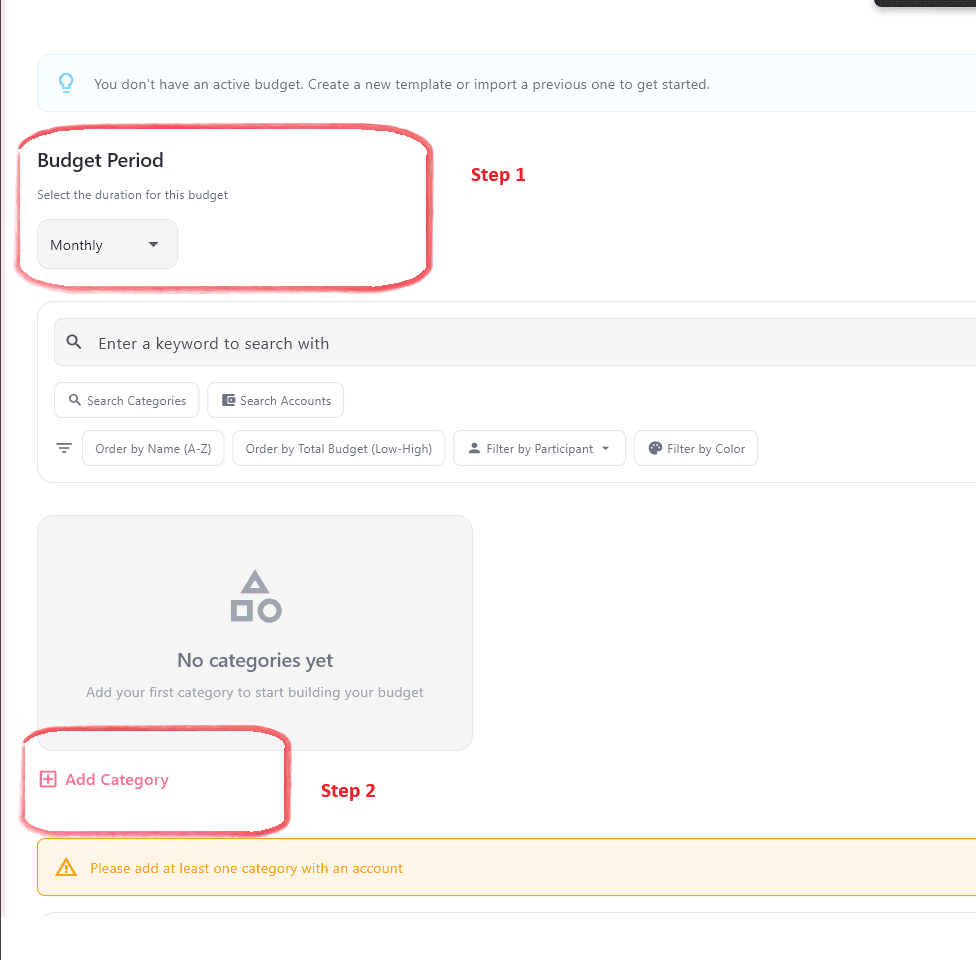
1. Select a Budget Period
Choose how long this budget will cover. This is crucial for accurate analytics and spending tracking.
Available Periods:
- • Monthly
- • Quarterly (3 months)
- • Semi-annually (6 months)
- • Annually (12 months)
- • Custom (specify number of months)
2. Create Categories
Categories are broad groupings of related expenses. Examples: "Groceries," "Transportation," "Entertainment," "Utilities."
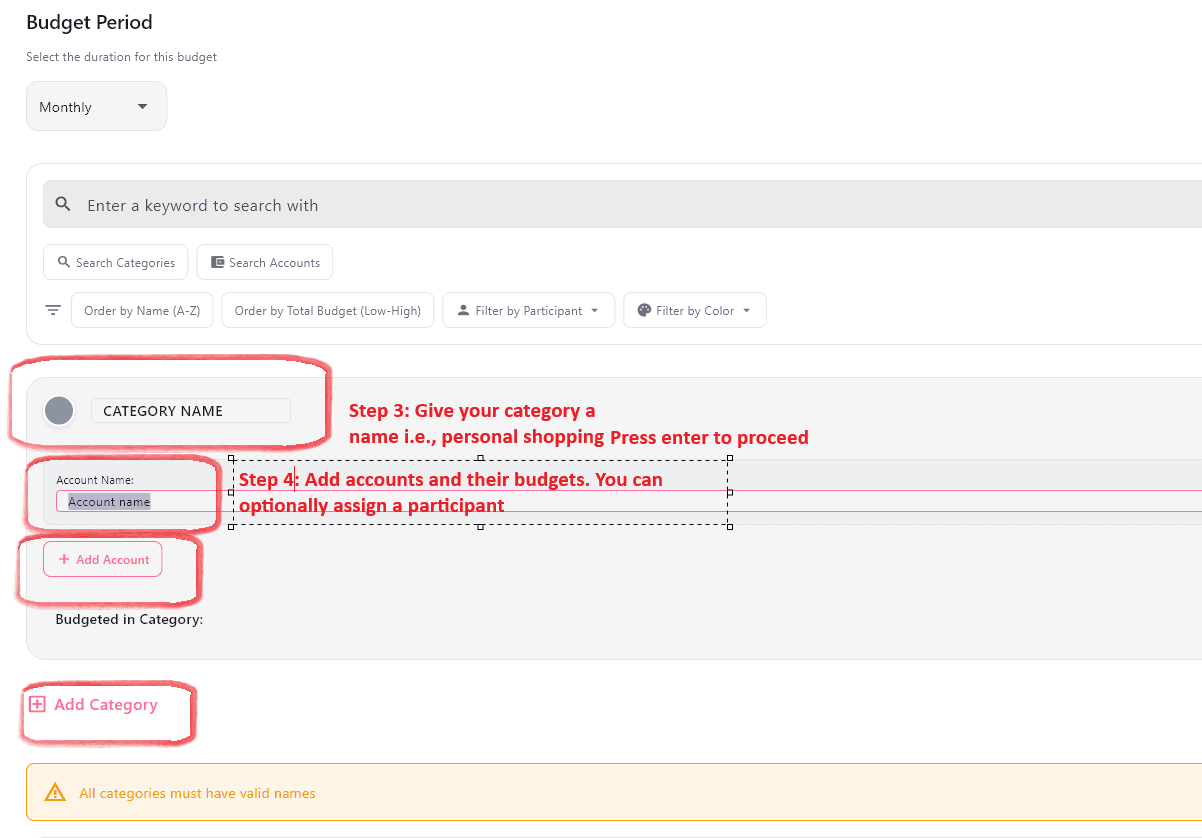
3. Create Accounts Within Categories
Accounts are specific line items within each category. For example, under "Transportation" you might have accounts for "Fuel," "Public Transit," and "Ride-sharing."
4. Assign Budget Amounts
For each account, enter how much money you plan to allocate over the selected period.
5. (Optional) Associate Participants
If you've added multiple users, you can assign specific accounts to individuals to track their personal spending.
Budget Creation Rules:
- Each Category must have at least one account and cannot use the default name
- Each Account must have a budgeted amount greater than 0.00
- Associating accounts with participants is optional
Keyboard Shortcuts:
- Press Enter to jump to the next field
- Pressing Enter on an empty participant field will skip it
💡 Pro Tip
Always collapse categories after completing them! A yellow banner will appear below your budget if anything is incomplete.
When you minimize a category, an "incomplete" tag will appear if any account within it needs attention. This helps you avoid missing required fields before saving.
Option 2: Using Templates
- Select Import on the budget template screen
- Browse the available preset budgets
- Adjust the budget period if needed
- Click Adopt to load the template
Note: Adopting a template will overwrite any draft work currently in your budgeting canvas.
Option 3: Importing Previous Budgets
- Select Import to view previously created budgets
- Expand a budget to see its details
- Click Adopt to restore that configuration
Note: This will replace any unsaved draft work in your current canvas.
Critical: Budget Management Best Practice
Always update existing budgets rather than creating new ones from scratch.
Here's why: Budget Audit learns vendor-to-account associations over time to automate transaction labeling. When you delete a budget and create a new one, all these learned associations are lost, and you'll need to re-train the system from scratch. Instead, modify your existing budget to preserve this valuable automation.
What Happens When You Change Budgets?
Switching to a different budget affects your analytics view. Since budgets are tied to specific time periods and transactions, changing your active budget will update all analytics to show data from that budget's period. You cannot mix analytics from multiple budgets in a single view.
C. Financial Documents & Analytics
Complete Privacy Guarantee
All transaction extraction and processing happens 100% offline on your device. Your bank statements never leave your computer. No data is sent to external servers during this process.
1. Adding Transaction Statements
Before you can generate analytics, you need to import your bank or credit card transaction statements. Navigate to the Home Page to begin.
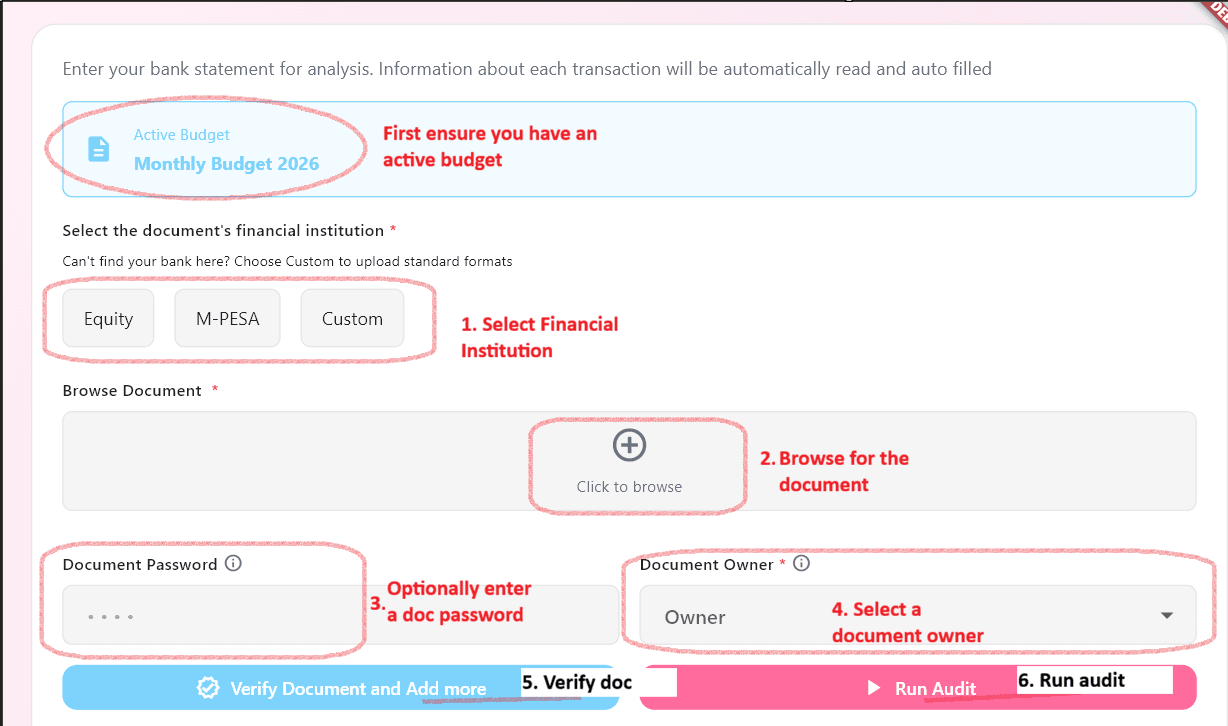
PS: Ensure you have created and are using the correct budget before running this.
Step-by-Step Upload Process:
- 1
Select Your Financial Institution
Choose your bank from the list. If your bank isn't listed, select "More" to upload generic OFX or CSV files.
If the your bank is listed, the PDF type document is expected. - 2
Browse for Your Document
This will allow you to explore PDF if you chose a specific bank. Should a generic institution was chosen using the Custom option you shall be able to choose a document matching the type you chose e.g., CSV
- 3
Enter Document Password (if required)
Some banks protect statements with passwords. Enter it when prompted.
- 4
Assign a Document Owner
Select which participant this statement belongs to. This helps track individual spending in shared budgets.
- 5
Verify & Add More (It is optional to add more, this is only meant to verify and allow you to add more)
Review the document details. You can add multiple documents before proceeding to extraction.
- 6
Run Audit
Click Run Audit to begin extracting all transactions from your statement(s). This happens entirely on your device.
If you realize that run audit is grey and inactive at this point, please ensure you have an active budget created and selected.
Alternative Formats Supported File Formats (Beta)
OFX and CSV support is currently in beta testing. Formatting varies significantly between banks.
If upload fails: Please report the issue to victorkithinji@outlook.com with your bank name. The parsers will be updated to support your institution.
2. Labeling Transactions
After extraction, you'll need to associate each transaction with an account in your budget. Budget Audit will remember your choices and automate future labeling.
How the Learning System Works
Budget Audit remembers vendor-to-account associations. The first time you label a transaction from "Starbucks" as "Coffee & Dining," future Starbucks transactions will automatically be suggested for that same account. The more you use the app, the more personalized Budget Audit becomes.
Understanding Transaction Categories
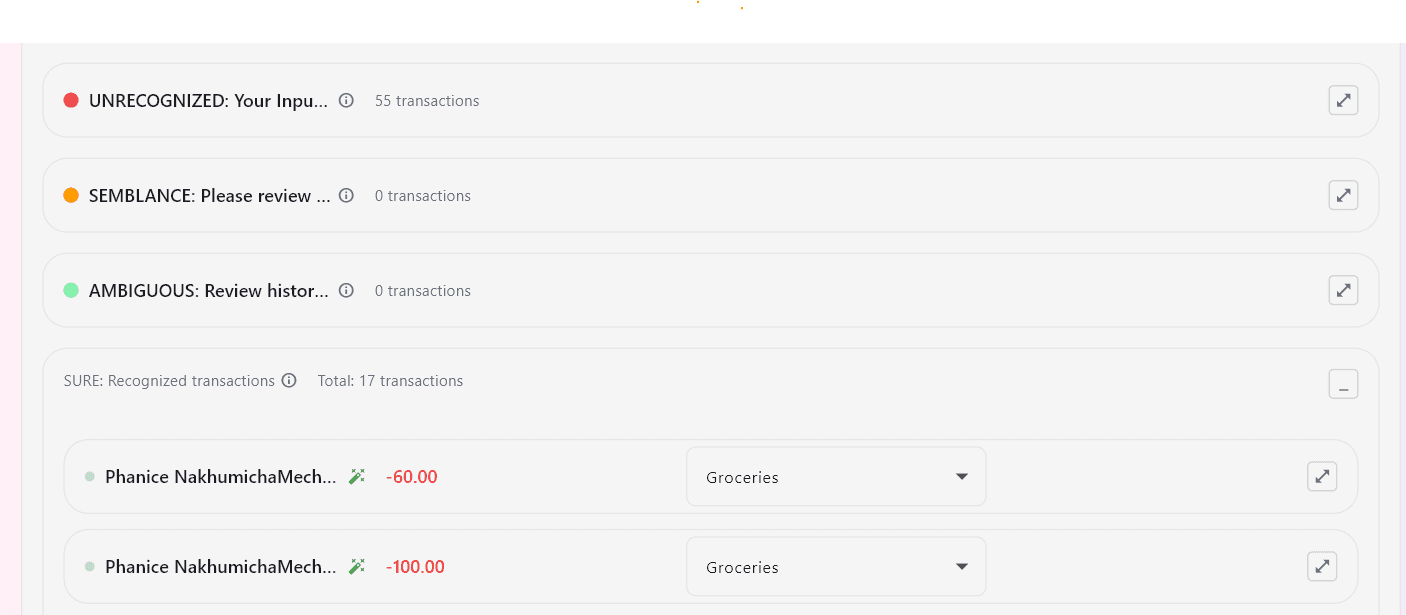
Transactions are organized into four intelligence levels based on how well the application recognizes them:
Input Required. Budget Audit has never seen this vendor before. You must manually select the appropriate account.
Closely resembles a known vendor (e.g., 'Uber' vs 'Uber Eats'). The app makes an educated guess, but review is strongly advised.
Vendor is recognized but has been used for multiple different accounts in the past. App assigns the most recent association—verify it's correct.
Vendor has only ever been associated with one specific account. High confidence—but you can still override if needed.
Advanced Transaction Features
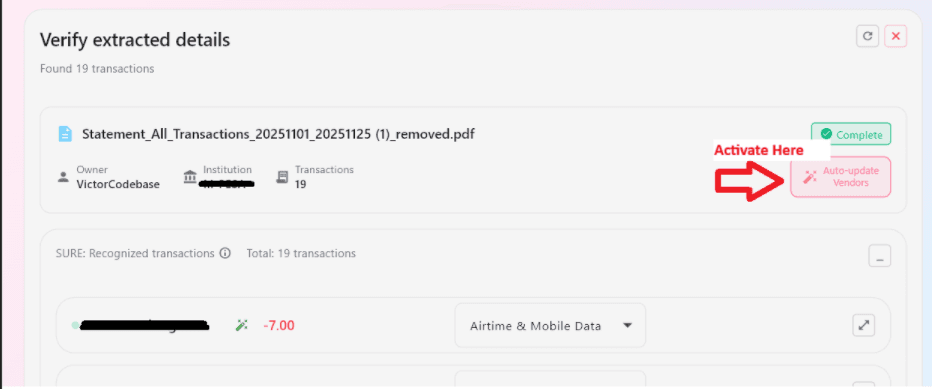
Auto-Update Vendors
When you assign an account to a transaction, Budget Audit checks if other unlabeled transactions from the same vendor exist.
Example Pop-up:
Update all vendors?
You have assigned "Uber" to "Daily Commute"
(!) Found 3 other transactions with "Uber" that haven't been labeled yet.
Would you like to update all of them to this account?
Tip: If you check "Don't ask me again," you can re-enable the prompt by toggling the "Auto-update Vendors" option at the top of the transaction list.
Splitting Transactions
Need to divide a single transaction across multiple budget accounts? You can split any transaction indefinitely.
How to Split:
- Expand the transaction (click the arrow on the far right)
- Click Split Transaction
- Enter the amount for the new split
- Select the account for this split portion
- The original transaction amount automatically adjusts
⚠️ Known Bug:
After splitting, the new transaction may not show the assigned account. You'll need to manually select it again. A patch is coming soon.
Ignoring Transactions
Some transactions don't belong in your budget analysis (transfers between your own accounts, refunds, etc.). You can exclude them:
- Expand the transaction
- Click Ignore Transaction
- The transaction will be excluded from all analytics
Preventing Future Auto-Association
If a vendor assignment is a one-time exception (e.g., you bought gas from a grocery store just once), you can prevent Budget Audit from remembering this association:
- Expand the transaction
- Uncheck Remember this association
- This vendor-account link won't be saved for future transactions
💡 Power User Workflow
For fastest labeling, work through transactions in this order:
- Review and correct Semblance transactions (similar vendor names)
- Verify Ambiguous assignments are appropriate
- Label all Unrecognized vendors
- Spot-check Sure transactions for accuracy
- Use the right arrow → to proceed to the next document
- Click Complete Audit when all documents are processed
3. Understanding Analytics
Once you've labeled your transactions, navigate to the Analytics tab from the menu to visualize your financial data. Budget Audit provides two main analysis views.
Analytics Controls
At the top of the Analytics page, you'll find powerful filtering options:
Budget Selector
Switch between different budgets you've created. Important: Changing budgets updates all graphs to show data from that budget's time period. You cannot mix data from multiple budgets in one view.
Period Navigation
Move forward or backward through time periods. By default, the view shows the most recent period with transaction data.
Period Step Size: Choose how data is grouped (Daily, Weekly, Monthly, Quarterly, Semi-annually, Annually). Note: You cannot select a step size equal to or larger than your budget period.
Participant Filter
All (Average): Shows combined data from all participants
Individual Participant: View spending data for just one person
Budget Analytics Tab
Visualize your planned resource allocation and priorities
1. Budget by Category (Pie Chart)
This pie chart shows what percentage of your total budget is allocated to each category.
Example:
- • Groceries: 30% of total budget
- • Transportation: 20% of total budget
- • Entertainment: 15% of total budget
- • Utilities: 35% of total budget
2. Account Breakdown (Bar Chart)
This companion chart shows the detailed breakdown of accounts within the selected category slice from the pie chart. By default, it displays the largest category.
How to use:
- • Click any slice of the pie chart
- • The bar chart updates to show all accounts in that category
- • Each bar represents the budgeted amount for that specific account
Expenditure Analytics Tab
Track actual spending against your planned budget
1. Expenditure vs Budget (Line Graph)
This graph tracks what percentage of your total budget has been consumed over time within the current period.
How it works:
- • Starts at 0% at the beginning of each budget period
- • Gradually increases toward 100% as you spend
- • Each budget period is treated independently
- • Helps you see if you're on track or overspending early
📈 Two Analysis Views Available
Toggle between these modes to see different perspectives on your spending:
🔍 Spending Deep Dive
Visual graphs and charts for pattern analysis
📝 Detailed Analysis
Ordered lists ranked by usage percentage
Spending Deep Dive
A. Resource Allocation by Category
Similar to the Budget Analytics view, but shows actual spending rather than planned budgets.
Spending by Category (Pie Chart):
- • Takes your total expenditure for the period as 100%
- • Shows what portion went to each category
- • Example: If you spent $1,000 total, and $300 went to groceries, the Groceries slice is 30%
Account Breakdown (Bar Chart):
- • Shows accounts within the selected category
- • Key difference: Each bar represents the ratio of amount spent to amount budgeted
- • Bars can exceed 100% if you overspent that account
- • Each bar is independent (unlike budget view where they show absolute amounts)
B. Daily Spending Pattern (Bar Graph)
Shows what percentage of your total budget was consumed each day during the period.
Insights you can gain:
- • Spot spending spikes (e.g., high spending on weekends or payday)
- • Identify patterns like heavy spending early in the period
- • All daily bars together add up to 100% of your period's spending
- • Useful for understanding your spending rhythm and adjusting behavior
Detailed Analysis
A. Categories by Usage
A ranked list of all budget categories sorted by usage percentage (ratio of expenditure to budget), highest first.
What you'll see for each category:
- • Total amount spent
- • Total amount budgeted
- • Usage percentage (spent ÷ budgeted × 100)
- • Expandable details: List of all accounts within the category with their individual totals and percentages
This helps you quickly identify which categories are consuming budget fastest and which specific accounts are driving those numbers.
B. Accounts by Usage
All budget accounts ranked by usage percentage, regardless of category.
Quickly see which individual line items are using the most budget, helping you prioritize where to cut spending if needed.
C. Vendors by Total Spending
A complete list of all vendors you've spent money with, sorted by total amount spent (highest first).
Use this to:
- • Identify your most expensive vendors
- • Spot subscription services or recurring charges
- • Find opportunities to negotiate better rates or switch providers
- • Understand where your money actually goes beyond category abstractions
💡 Analytics Pro Tips
- •Use Daily step size to spot exact dates of large purchases
- •Compare Budget Analytics with Expenditure Analytics to see where your priorities differ from your actual behavior
- •Check the Vendors by Total Spending list monthly to catch unwanted subscriptions
- •If you're consistently overspending in a category, expand it in Categories by Usage to find which specific accounts are the culprits
D. Settings & Management
Access settings via the top-left menu bar.
Profile & Participants
Update your details. Managers can add/edit participants here. (Note: Handover admin rights by editing manager details).
Vendor Management
View and delete Vendor-Account associations. Deleting here removes the "memory" for future audits.
E. How Data is Handled
100% Local Processing
Your financial data never leaves your device. All transaction extraction, analysis, and processing happens entirely on your local machine. When you upload bank statements, they are analyzed using your device's computing power—no servers, no cloud storage, no external transmission.
What this means for you:
- No risk of data breaches on remote servers
- Complete control over your financial information
- Works offline—no internet connection required for core features
Opt-In Online Features
Any feature that requires online connectivity is completely optional and requires your explicit consent. You will always be informed about:
- What data is being shared
- Why it's needed for the feature to work
- Where it's being sent (third-party services)
- How to disable the feature if you change your mind
Budget Audit will never enable online features without your knowledge or permission. If you choose to keep everything offline, all core functionality remains available.
Future Export Capabilities
Planned future versions may support exporting your financial data to formats like Excel or Google Sheets for further analysis.
⚠️ Important Disclosure
When you choose to export to third-party services like Google Sheets, your financial data will be shared with those providers according to their terms of service and privacy policies, not ours. Budget Audit acts only as a facilitator for this export—you are choosing to trust the third-party service with your data.
Standard file exports (e.g., downloading a CSV to your device) remain completely private with no third-party involvement.
Account Recovery Features (Future)
Future versions may include optional cloud-based account recovery features (password reset, multi-device sync). If implemented, these features would require sharing minimal personal information with Budget Audit servers:
- Username
- Email address
Data Usage Promise:
This information would be used exclusively for account recovery and authentication purposes. It would never be sold, shared with third parties for marketing, or used for any purpose other than enabling the specific features you've opted into.
Note: These features do not currently exist and will be clearly marked as optional when introduced.
Future AI-Powered Budget Creation
Future versions may include AI-powered features where you can describe your financial situation to an AI assistant (Large Language Model) to generate personalized budget recommendations.
AI & Data Privacy
To generate your budget using AI, budget audit relies on providers like OpenAI and Anthropic. Before you start, please keep these privacy practices in mind:
Data Processing
AI providers may use shared data to improve their future models. Information shared here is permanent.
Best Practices
Never share account numbers or passwords, account number or any personal information
Be careful as you share personal financial details
Note: These AI features do not currently exist. When introduced, they will be clearly labeled as experimental with prominent privacy warnings.
F. Privacy Notice
Legal Agreement
Please review the full terms below.